Connect To Movement
Use a wallet to connect to the Movement Network.
This guide will show you how to use blockchains on the movement network. Everything from setting up the wallet to connecting to the chain, getting testnet tokens from the faucet, and using the explorer will be covered in this guide.
Let’s start by installing a wallet. We recommend Motion, the official Movement wallet built by Move Industries. OKX Wallet and Nightly are also supported. All of these work on Chrome, Brave, Opera, Edge, and other Chromium-based browsers.
Install the Chrome extensions here:
Wallet Setup
Follow the instructions to set up the wallet.
Motion Wallet
Motion is the official self-custodial wallet for the Movement Network, built by Move Industries. Your keys are encrypted and stored locally on your device. It supports sending and receiving MOVE, swaps, bridging (Movement → Ethereum via LayerZero), Ledger hardware wallets, and dApp connections, with quick switching between Mainnet and Testnet.
Get Motion WalletLearn more or download it at motion.movementnetwork.xyz.
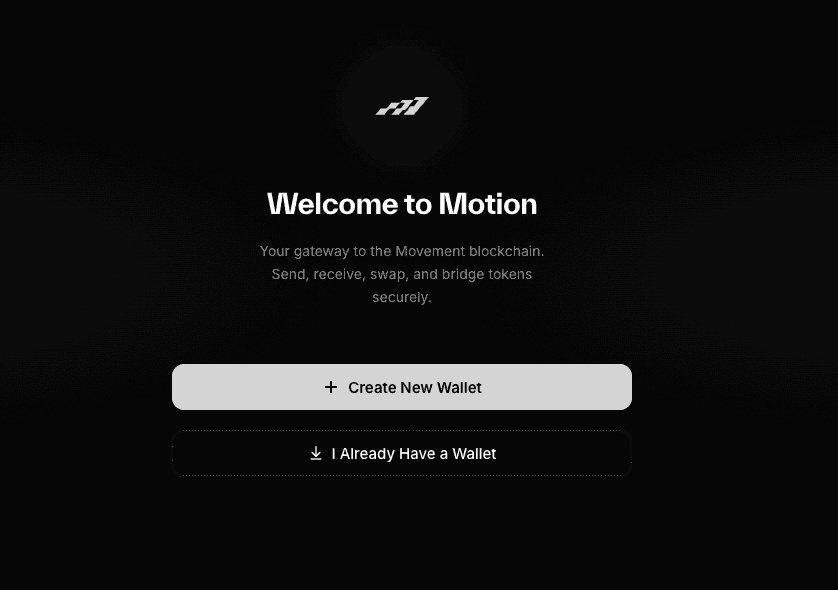
Step 1: Install and Open Motion
- Install the Motion Wallet extension from the Chrome Web Store and pin it to your toolbar.
- Open the extension to begin setup.
Step 2: Create or Import a Wallet
- Choose Create a new wallet to generate a fresh seed phrase, or Import an existing wallet using a seed phrase or private key.
- Write down your recovery phrase and store it somewhere safe. Never share it with anyone.
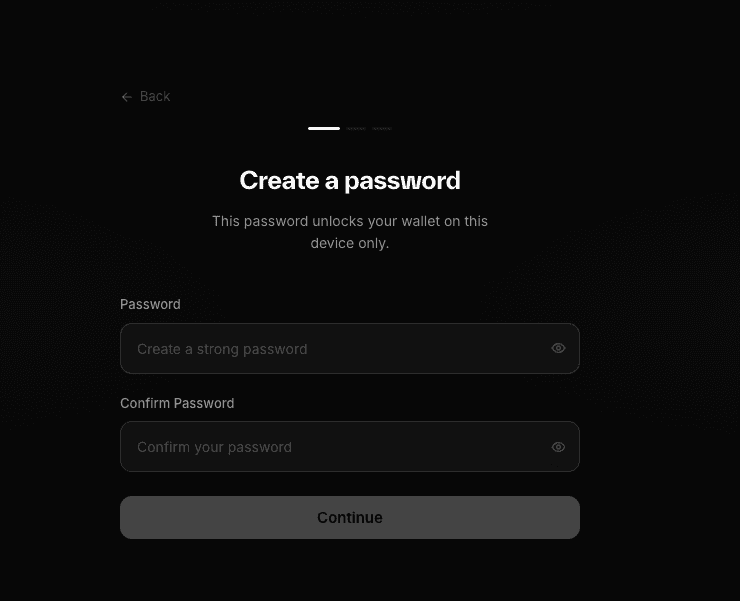
Step 3: Set a Password
- Create a strong password to encrypt your wallet locally.
- Confirm the password to finish setup.
OKX Wallet
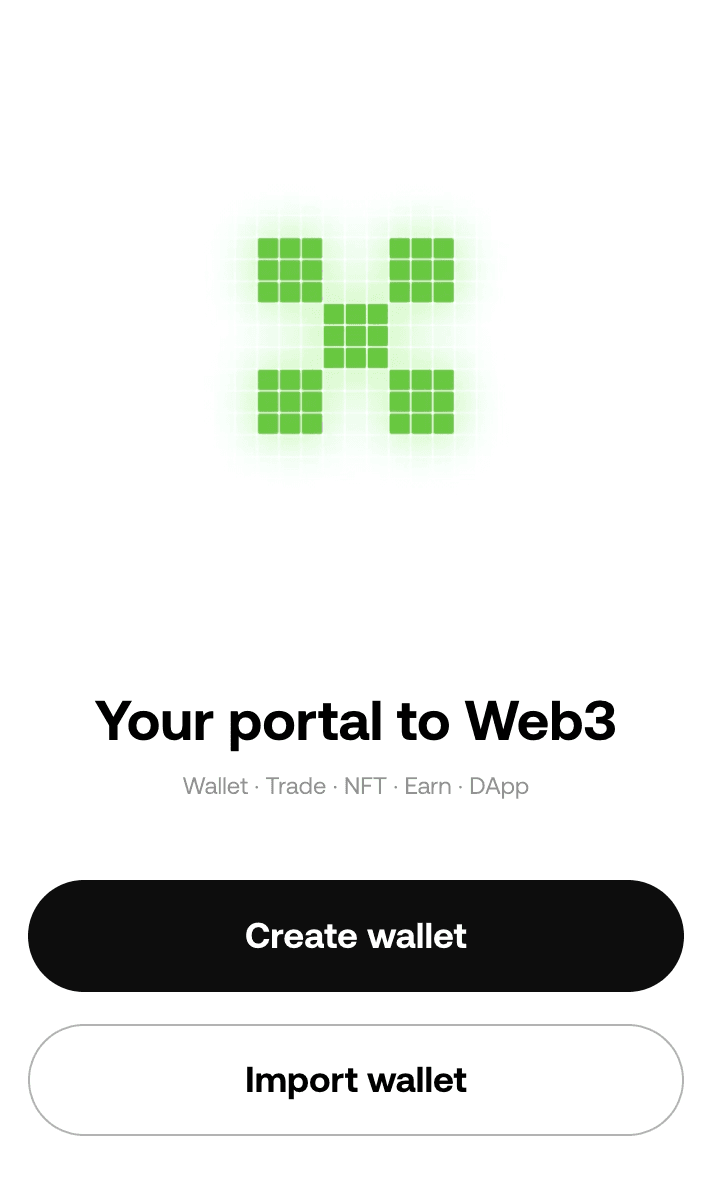
Step 1: Welcome to OKX Wallet
- Open the OKX Wallet extension.
- You will be greeted with the welcome screen.
- Click on the “Start” button.
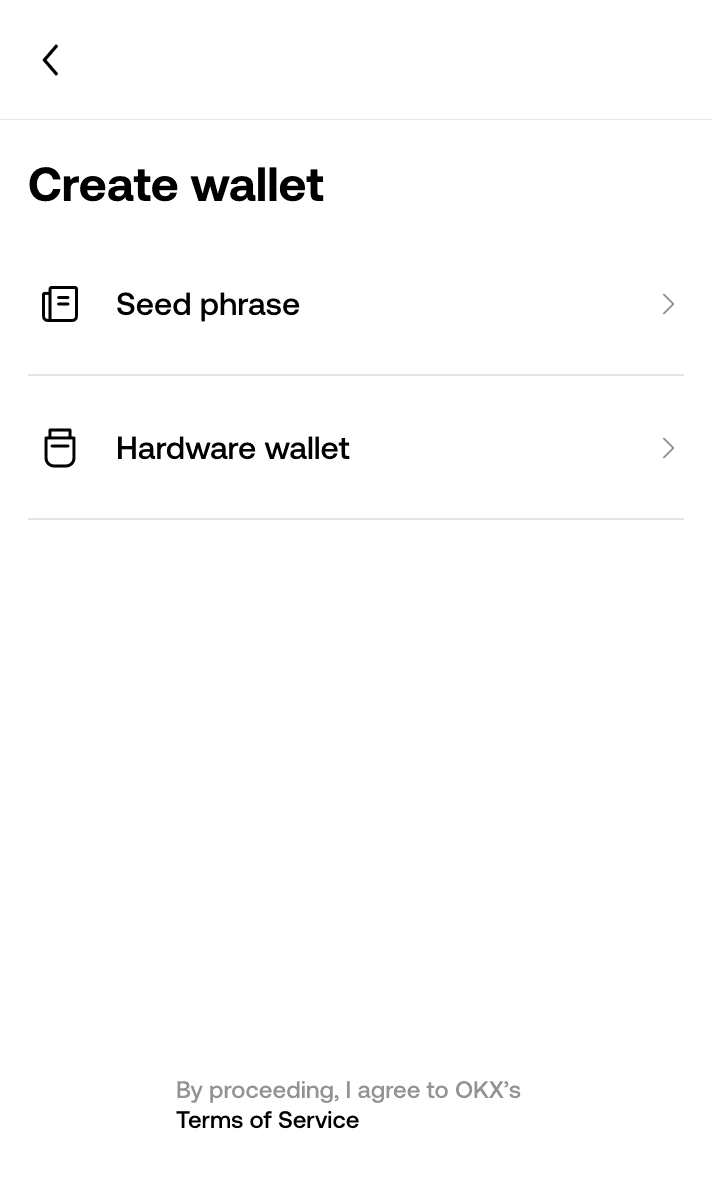
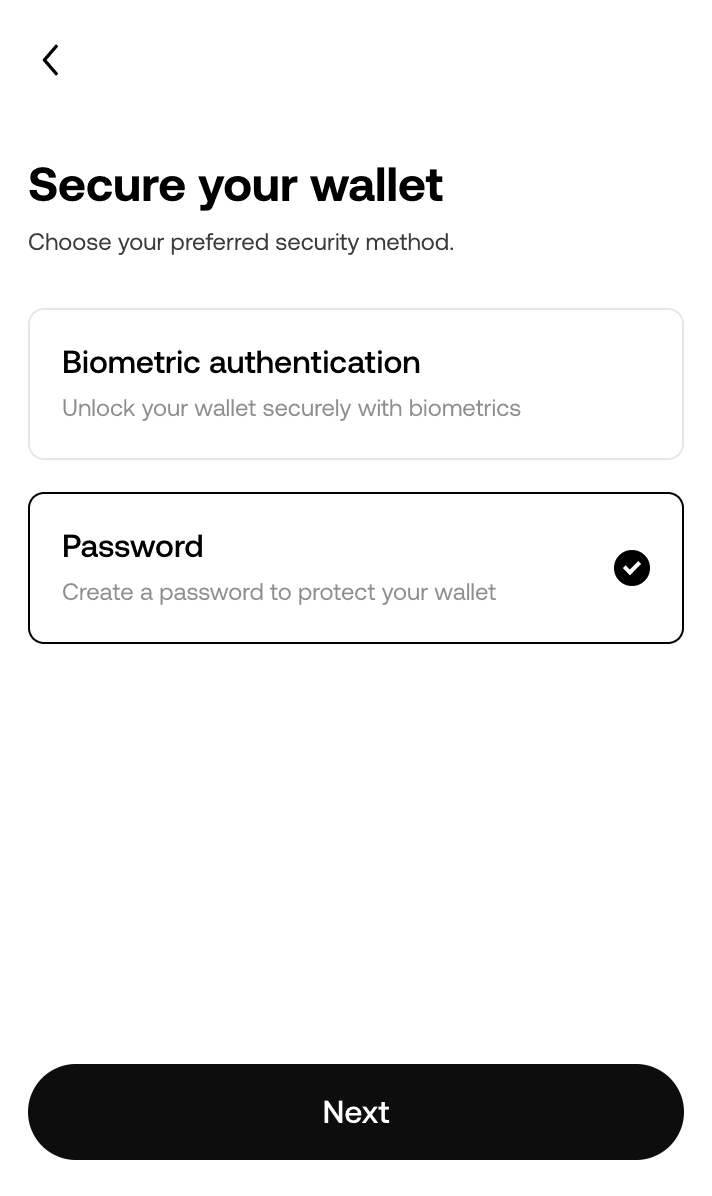
Step 2: Create Wallet
- The next screen will present you with the "Create Wallet" page. In our example we will use the "Seed phrase" option secured by a password.
Step 3: Create a Password
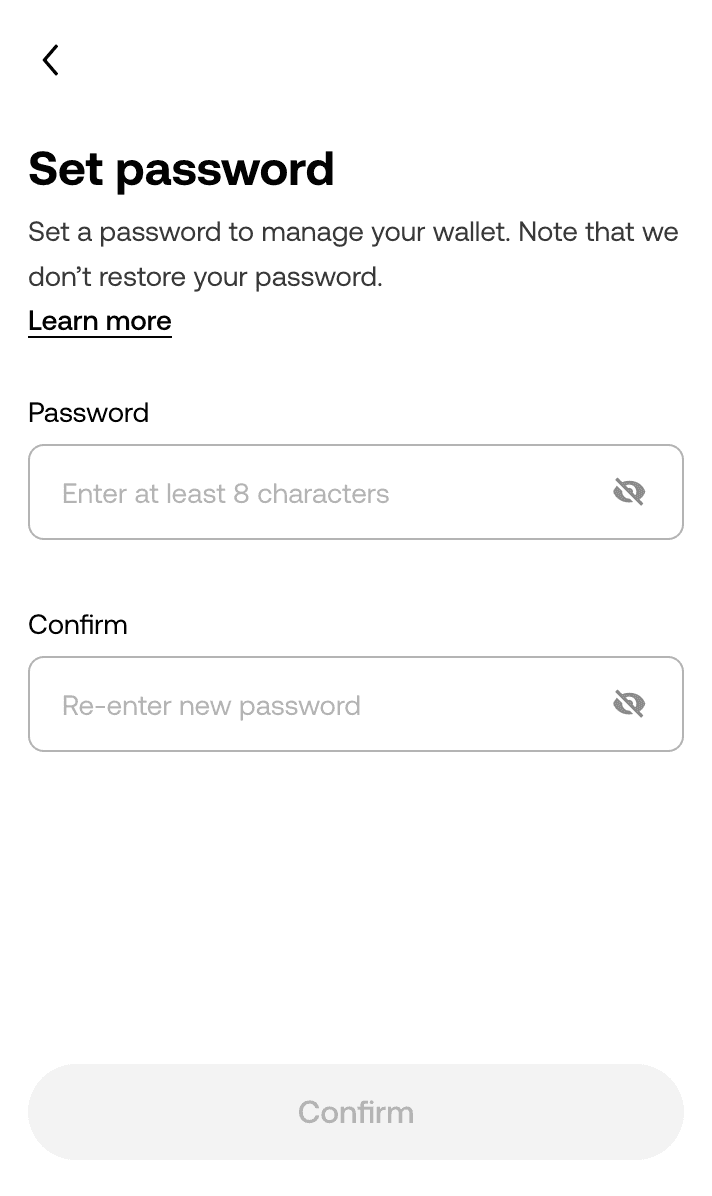
- You will now be prompted to create a password for the wallet.
- Enter a strong password and confirm it by entering it again.
- Click on the Confirm button.
Step 4: Back Up Your Seed Phrase
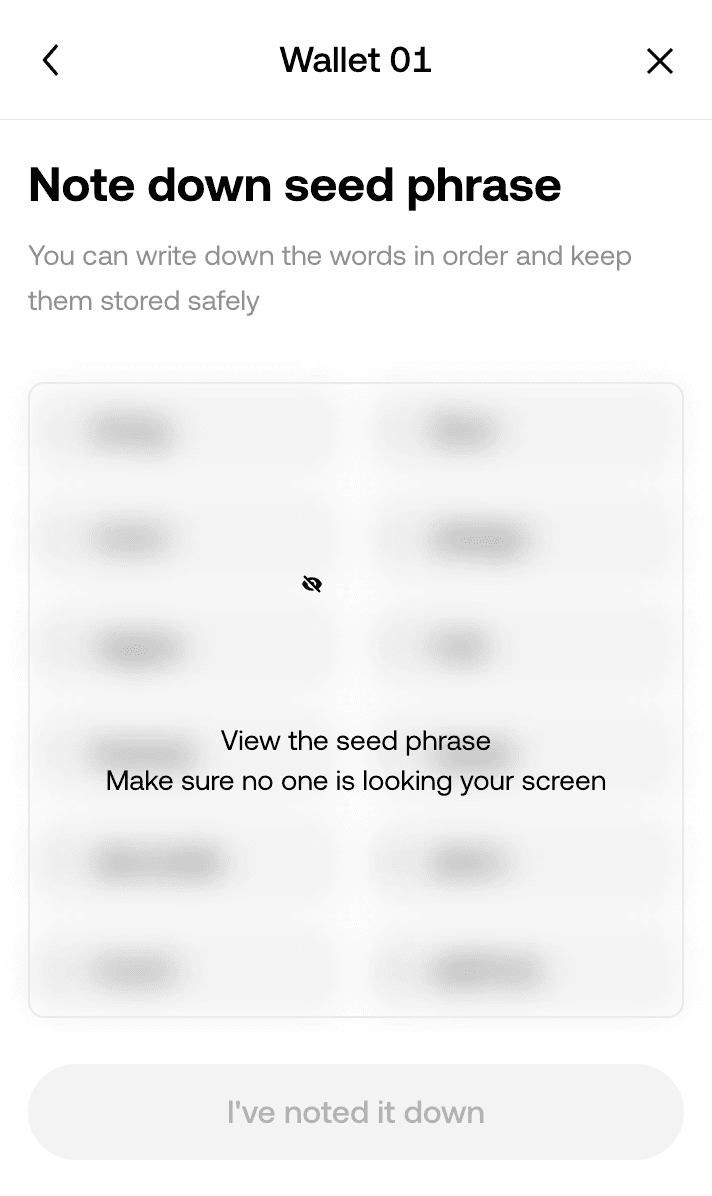
- You will now be prompted to save your seed phrase. Be sure to write this down and keep it in a safe space
Step 5: Welcome to the OKX Wallet Dashboard
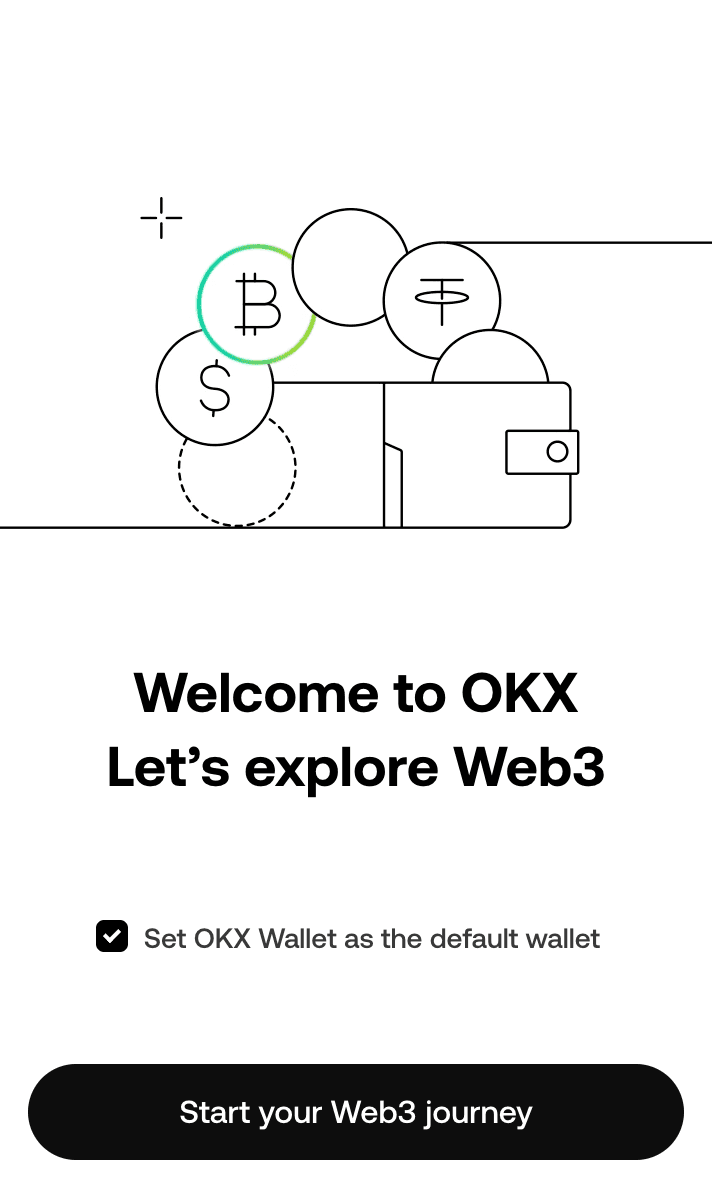
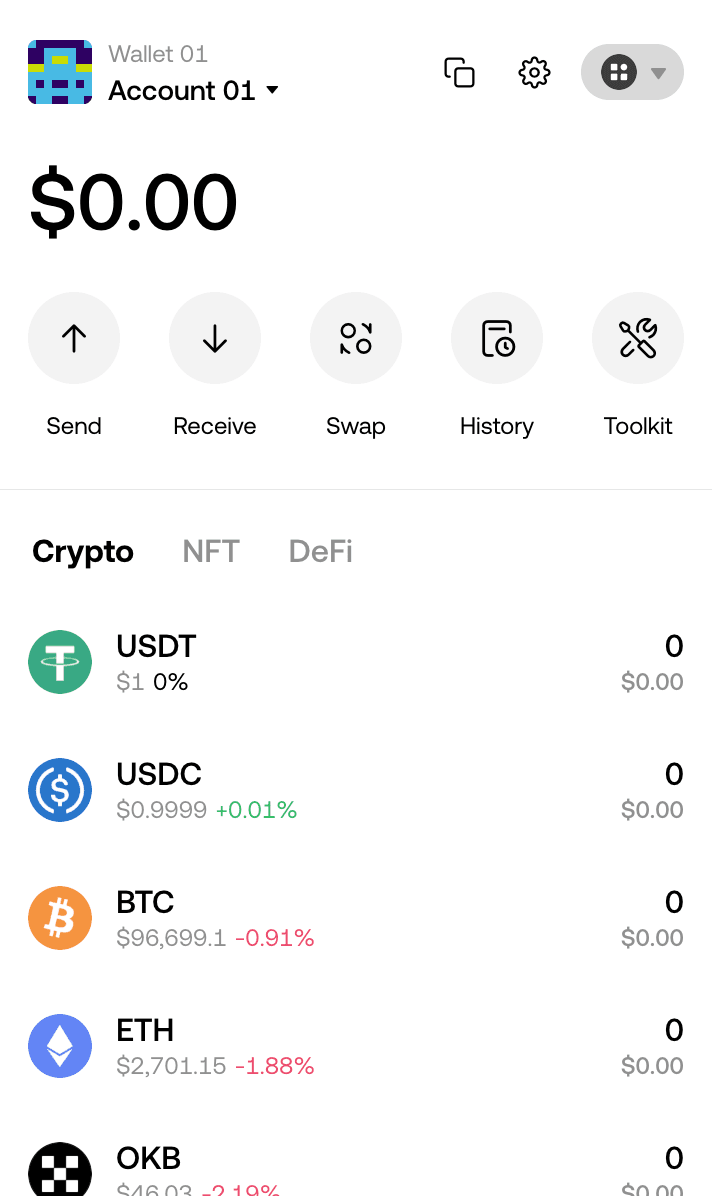
- After setting up your password, you will see the OKX Wallet dashboard upon clicking the extension.
Nightly
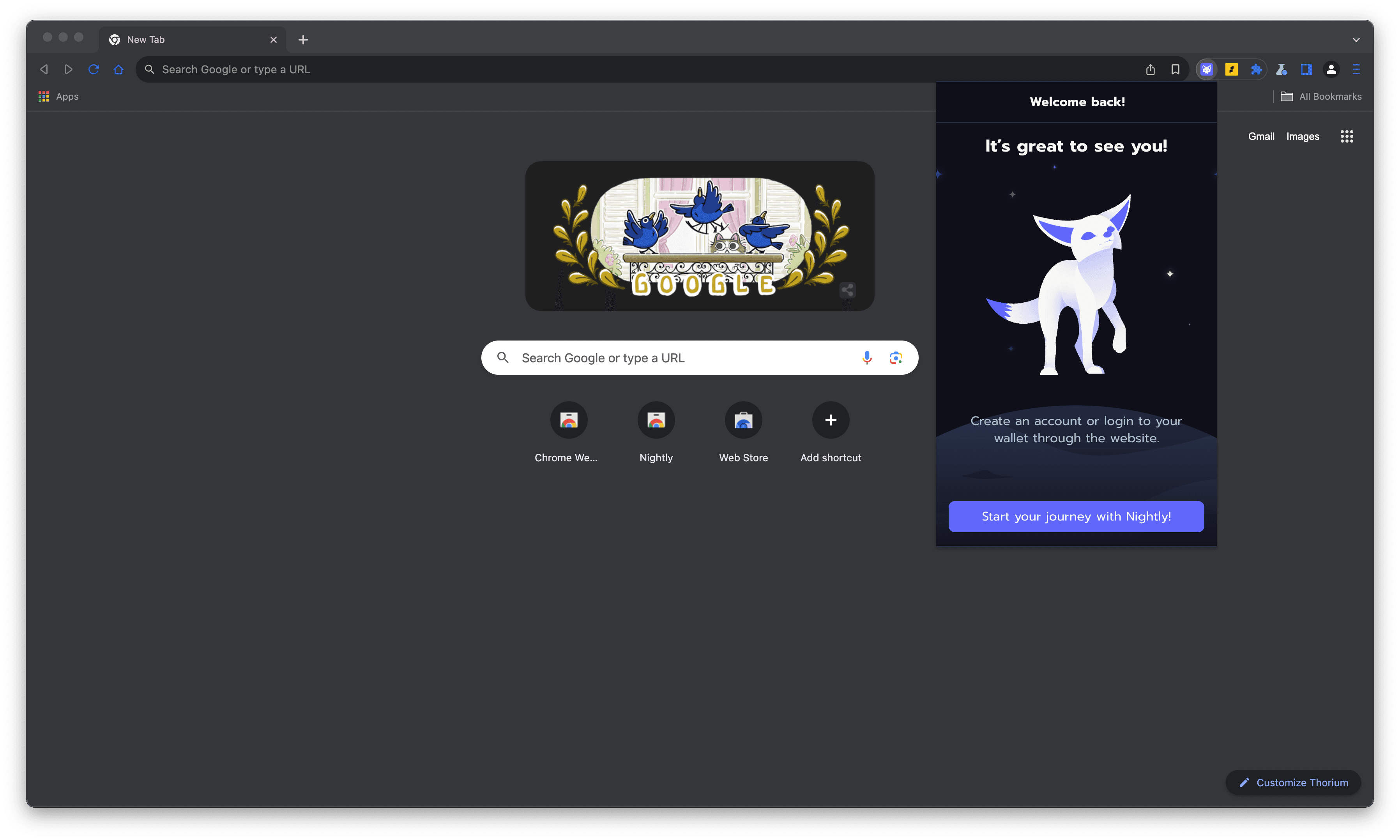
Step 1: Welcome to Nightly Wallet
- Open the Nightly Wallet application or extension.
- You will be greeted with the welcome screen.
- Click on the “Start your journey with Nightly!” button.
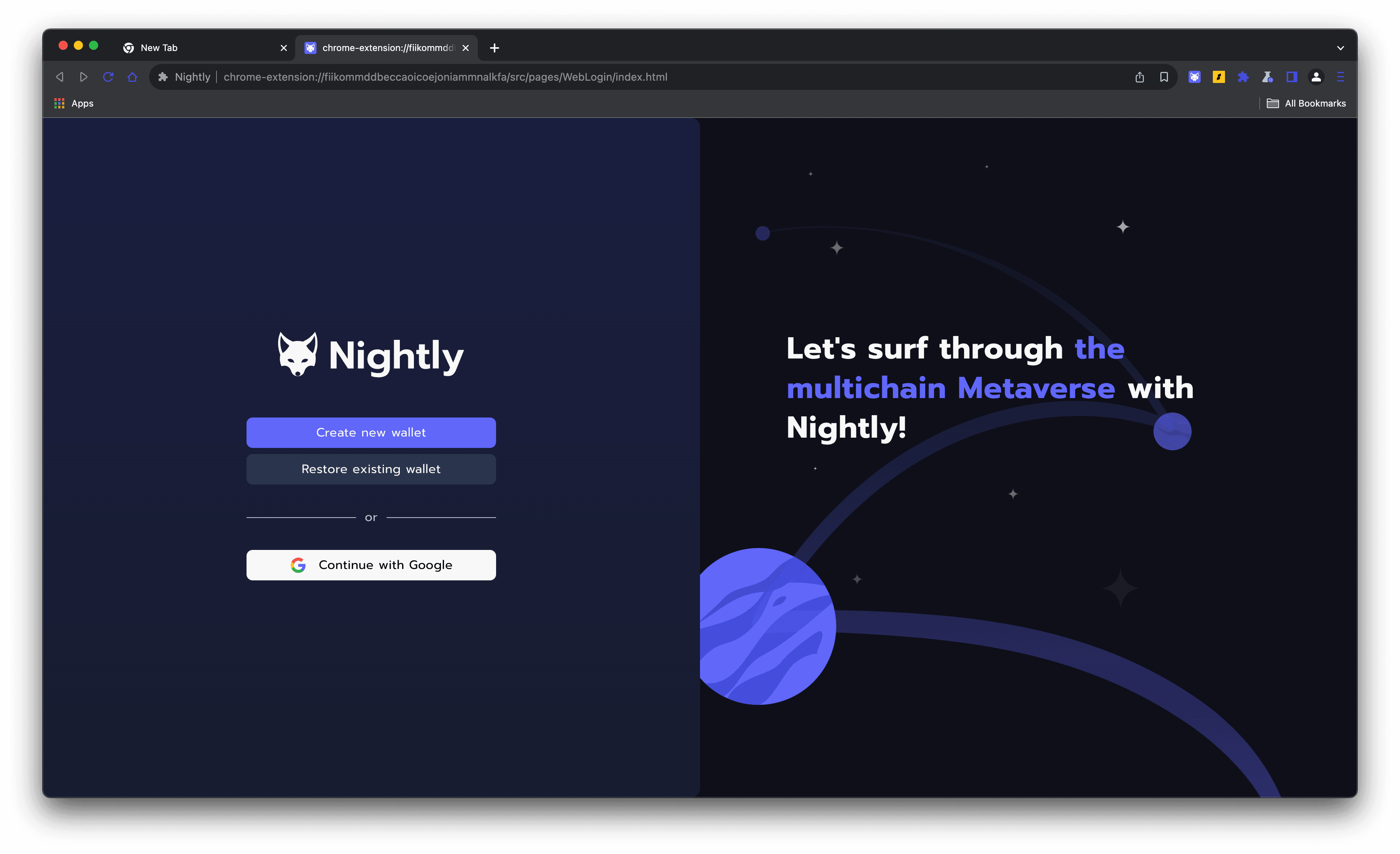
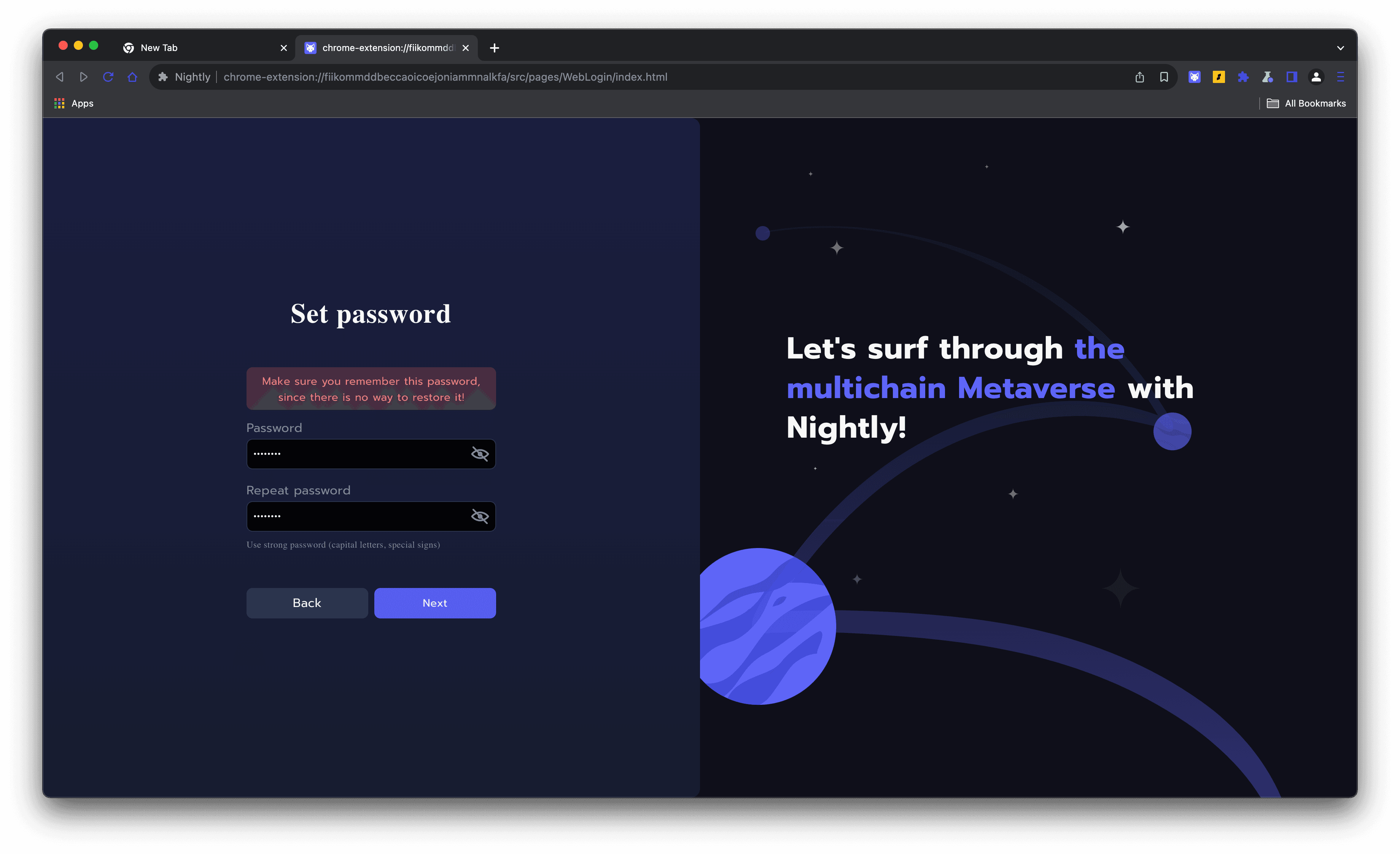
Step 2: Set Password
- You will now be prompted to create a password for your Nightly wallet after you create a new wallet.
- Enter a strong password and confirm it by entering it again.
- Click on the “Next” button.
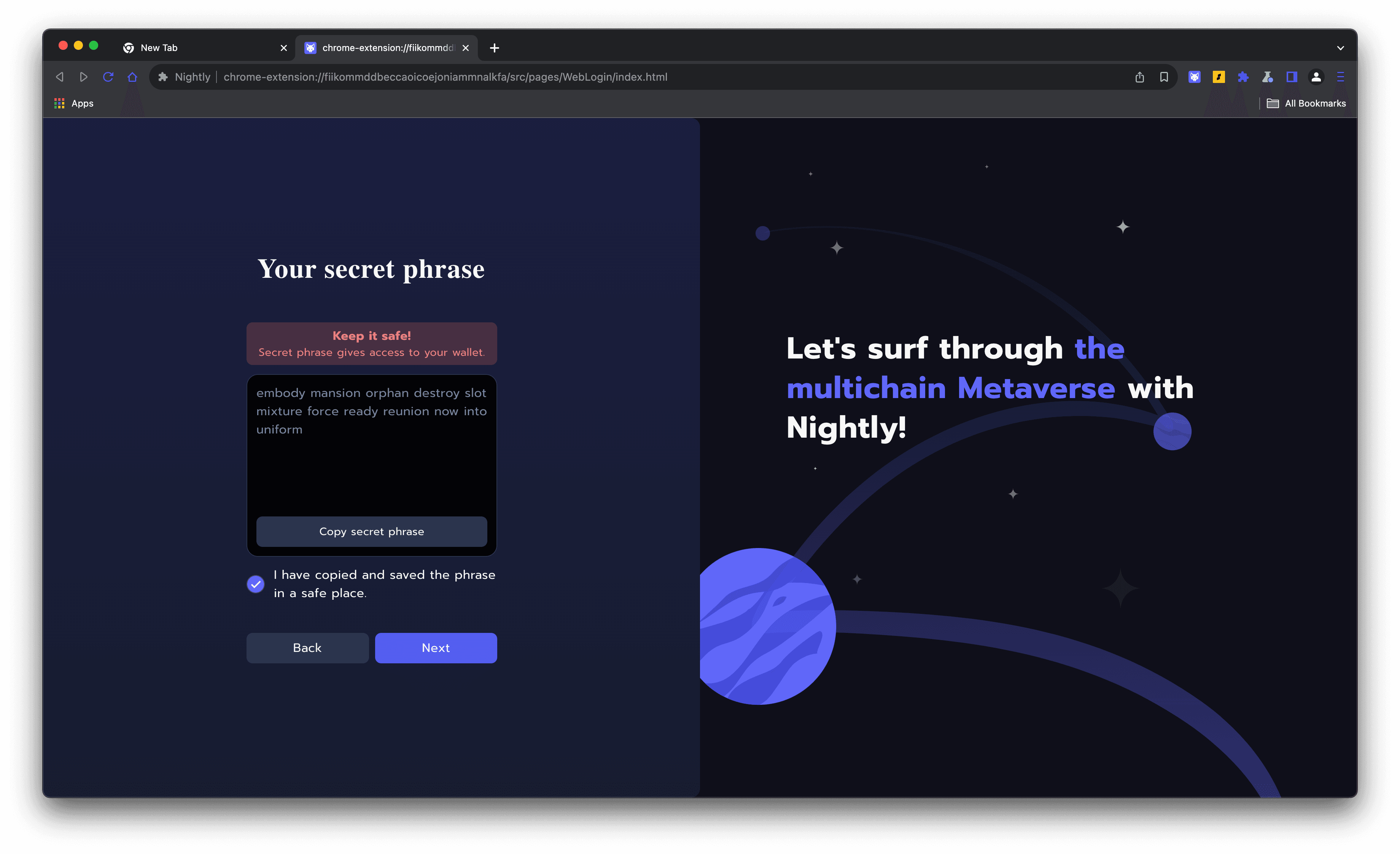
Step 3: Your Secret Phrase
- The next screen will present you with your Secret Recovery Phrase. This is a critical step in setting up your wallet.
- Ensure you write down the 12-word phrase and store it securely. Do not share it with anyone.
- Click on “Next” after you have safely noted it down.
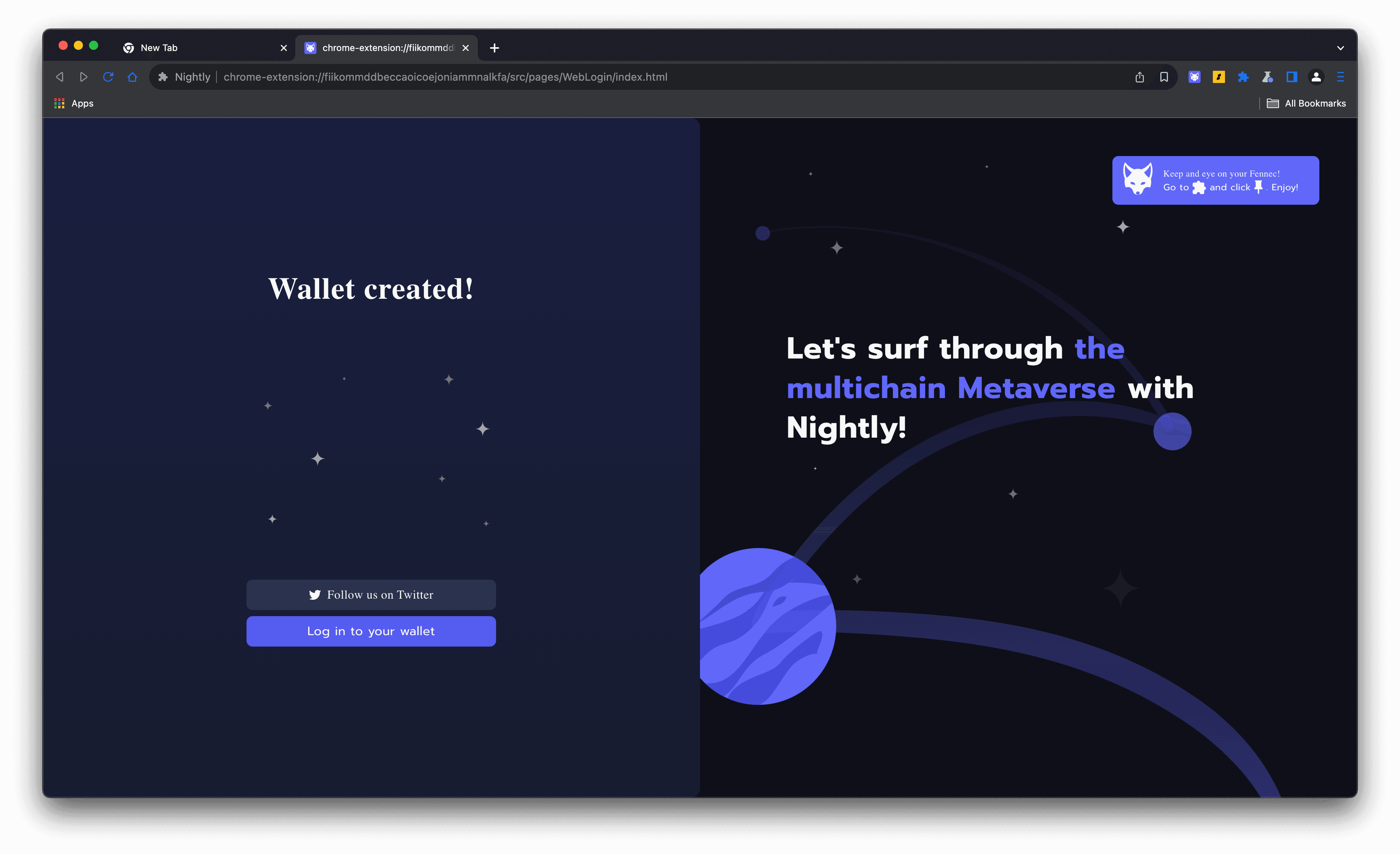
Step 4: Wallet Created
- Once you have completed the setup, you will receive a message indicating that your Nightly wallet has been created.
- Click on “Log in to your wallet” to finish the setup process.
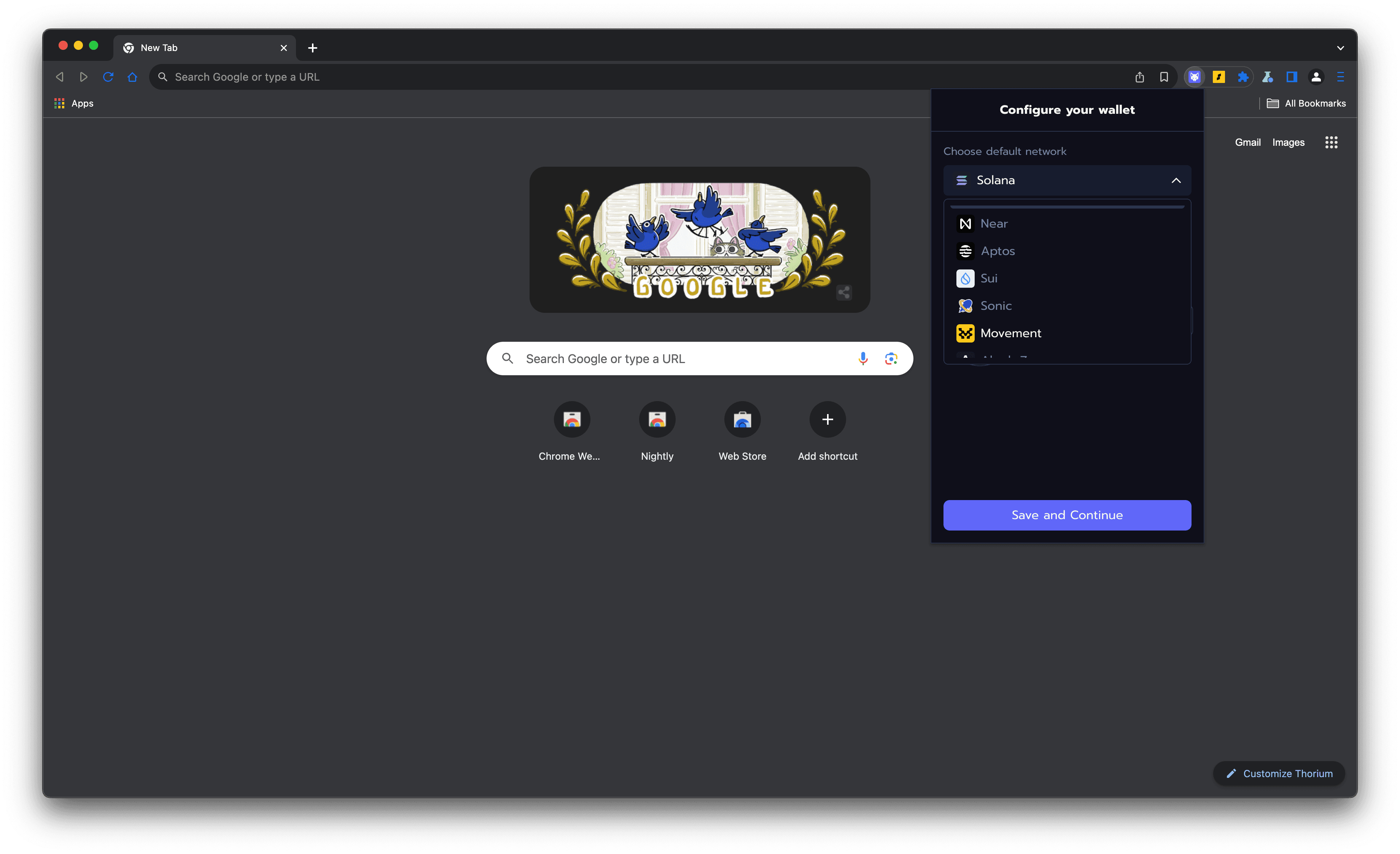
Step 5: Nightly Wallet Dashboard
- After logging in, you will see the Nightly Wallet dashboard.
- Be sure to select Movement from the network drop-down menu and you’re set!
Connecting to the Movement Network
Movement Network currently runs Aptos Move on both Mainnet and Testnet, powered by the M1 blockchain.
Note: Sui Move and Move EVM (MEVM) have been deprecated and are no longer supported.
Our Mainnet and Testnet are running M1 - a native Layer 1 blockchain built specifically for the Move programming language. Learn more about M1 architecture and capabilities.
dApps deployed on the Movement Network will work with Motion and Nightly wallets.
Let's try using them on Movement's Faucet with Aptos Move.
Step 1: Access the Movement Faucet
- Open your browser and go to Movement Faucet.
- Select the chain you want to use. For this example, select "Aptos Move" in the mock tokens section.
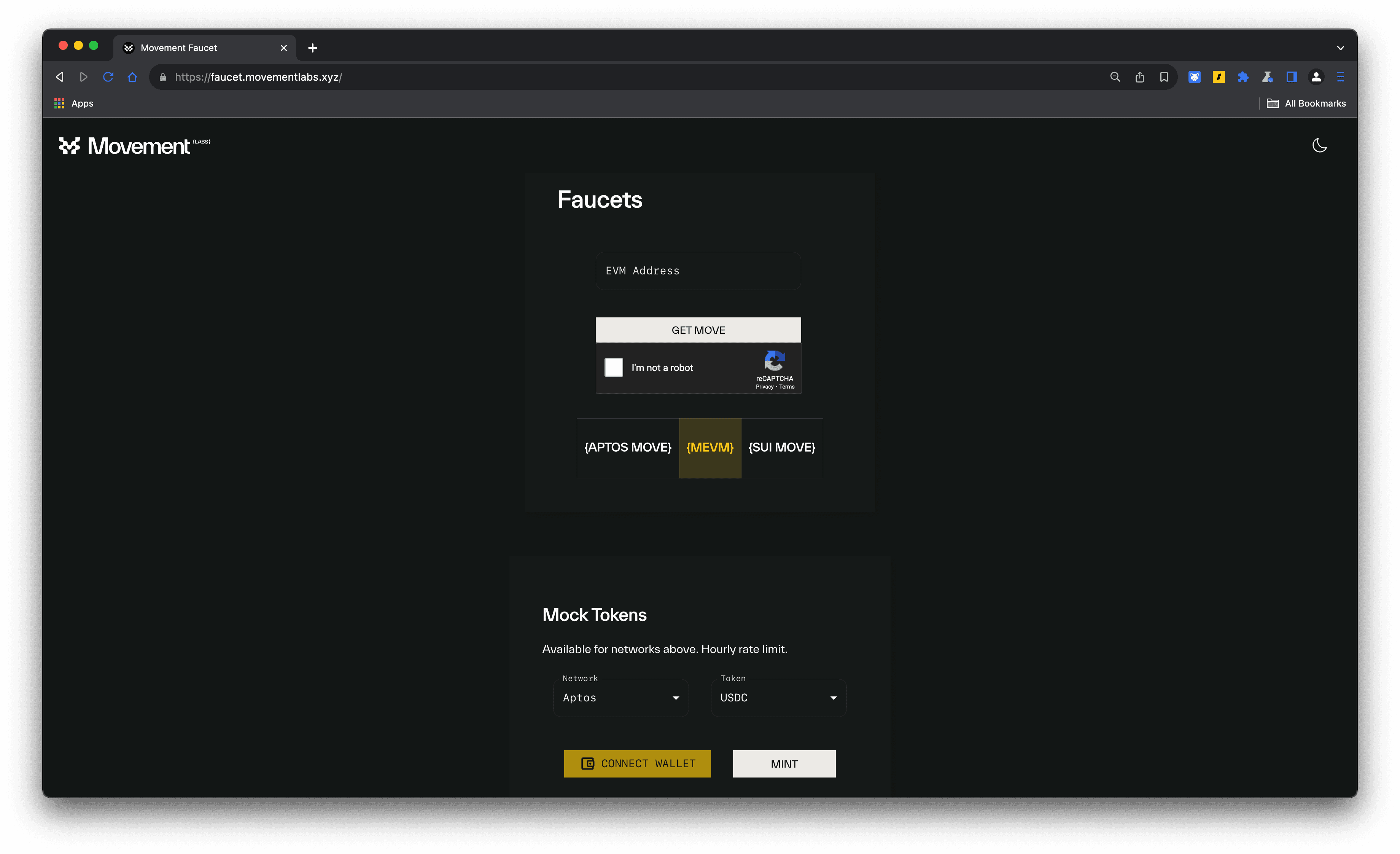
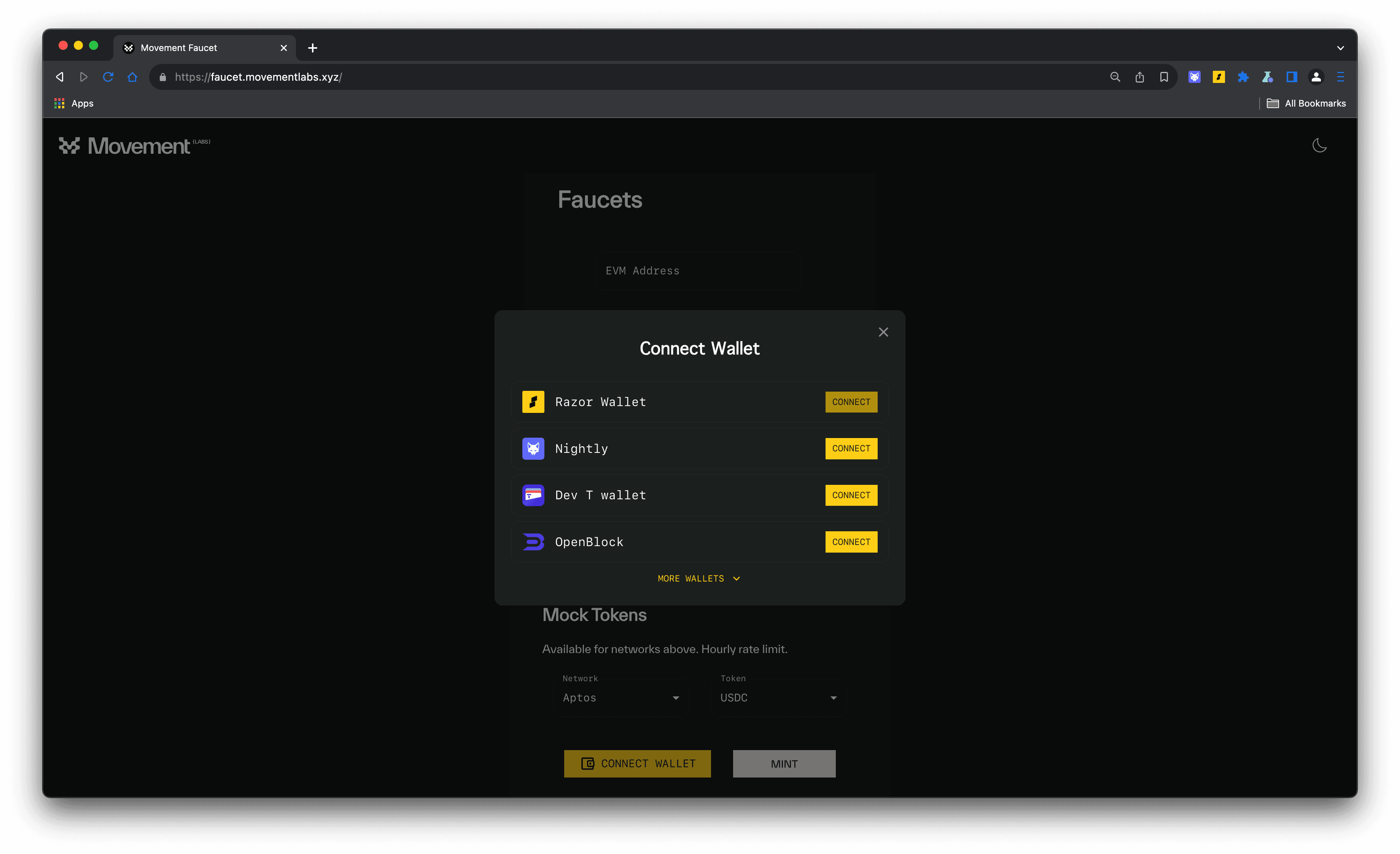
Step 2: Connect Your Wallet
- Click on the “Connect Wallet” button.
- Choose Motion Wallet or Nightly Wallet from the list of available wallets.
Step 3: Approve Access Request
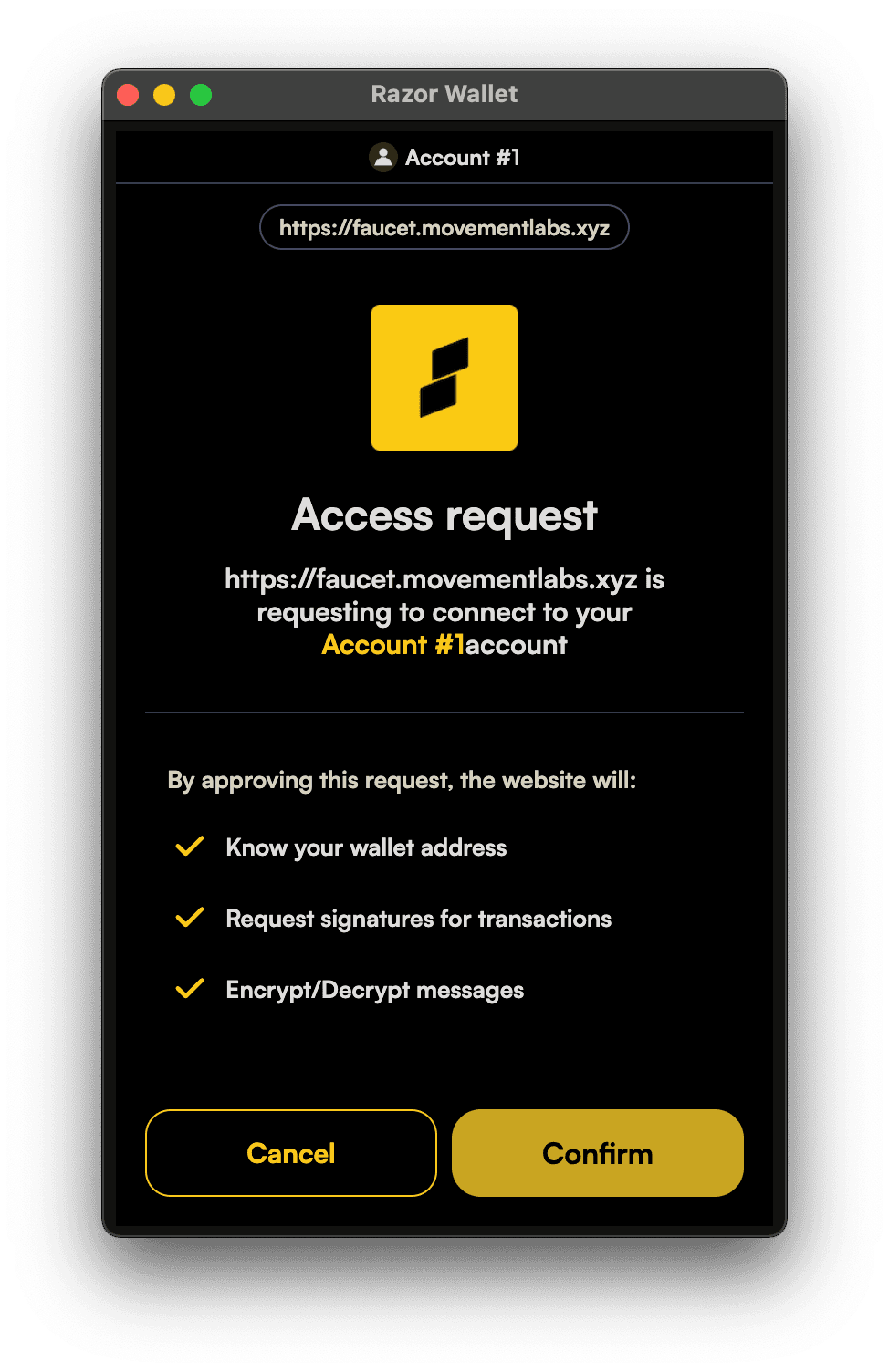
- Your wallet will request access to connect to the Movement Faucet.
- Approve the access request by clicking “Confirm”.
Step 4: Get Mock Tokens
- Now that the wallet is connected, you can mint dummy tokens as per your needs.
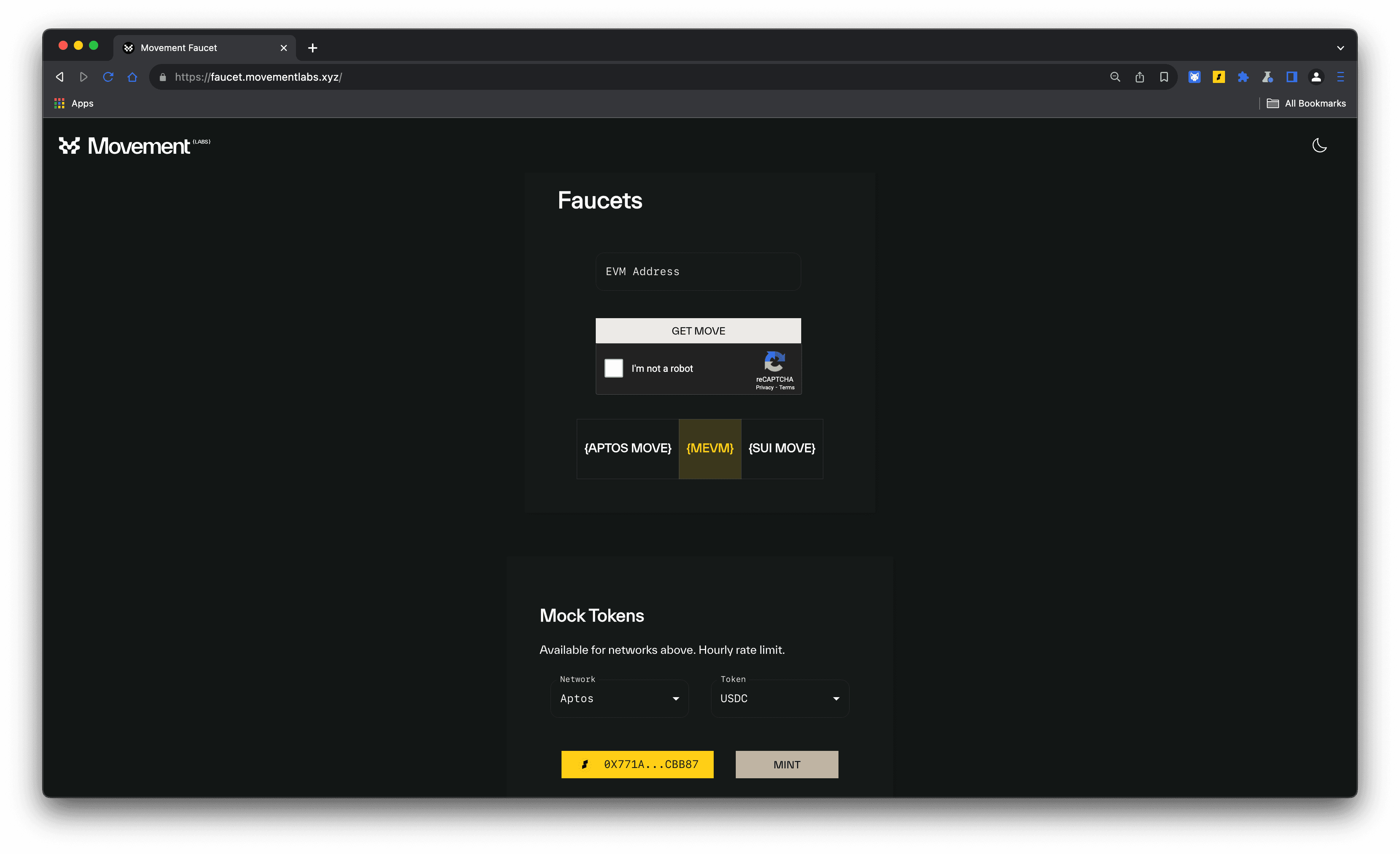
Using this faucet, you can get testnet tokens across any movement chain.
That is it for this guide! If you’re looking to build on Movement, check out our developer docs.